How to ask questions with Noulek Chat
Objective
Learn how to open Noulek Chat, send a message, and verify that the assistant responds using your Knowledge Base.
Before you start
- Active license, configured LLM and Vector DB.
- At least one Ready document in Knowledge Base.
Where Chat is located
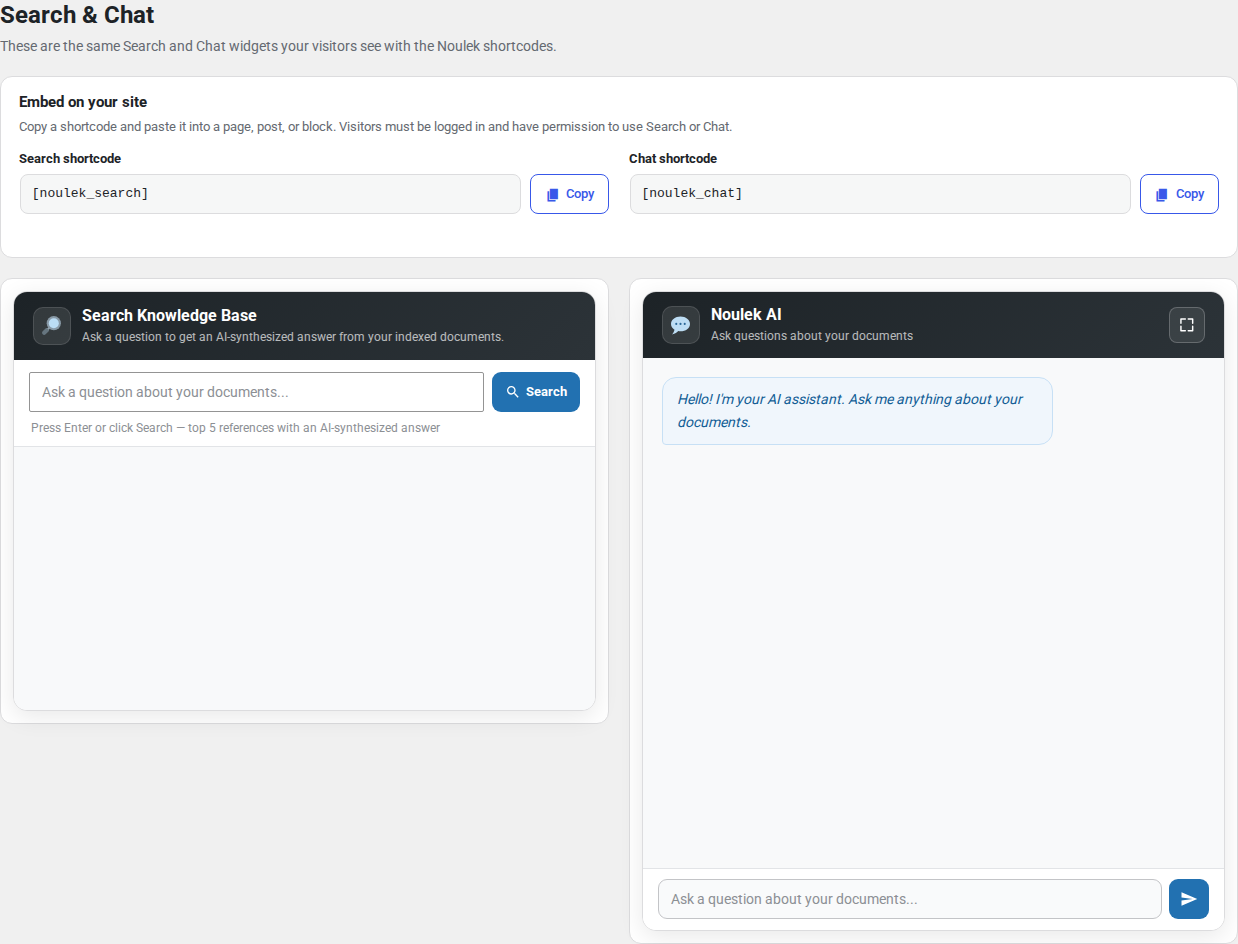
Admin preview: Noulek AI → Search & Chat includes a chat widget preview on the same page as Search.
Public site: Add the Noulek chat shortcode or block to a page. Visitors use the chat panel to type questions and read replies.
Procedure
1. Open Search & Chat
Go to Noulek AI → Search & Chat in the WordPress dashboard.
Scroll to the chat preview (or open your public page with the chat widget embedded).
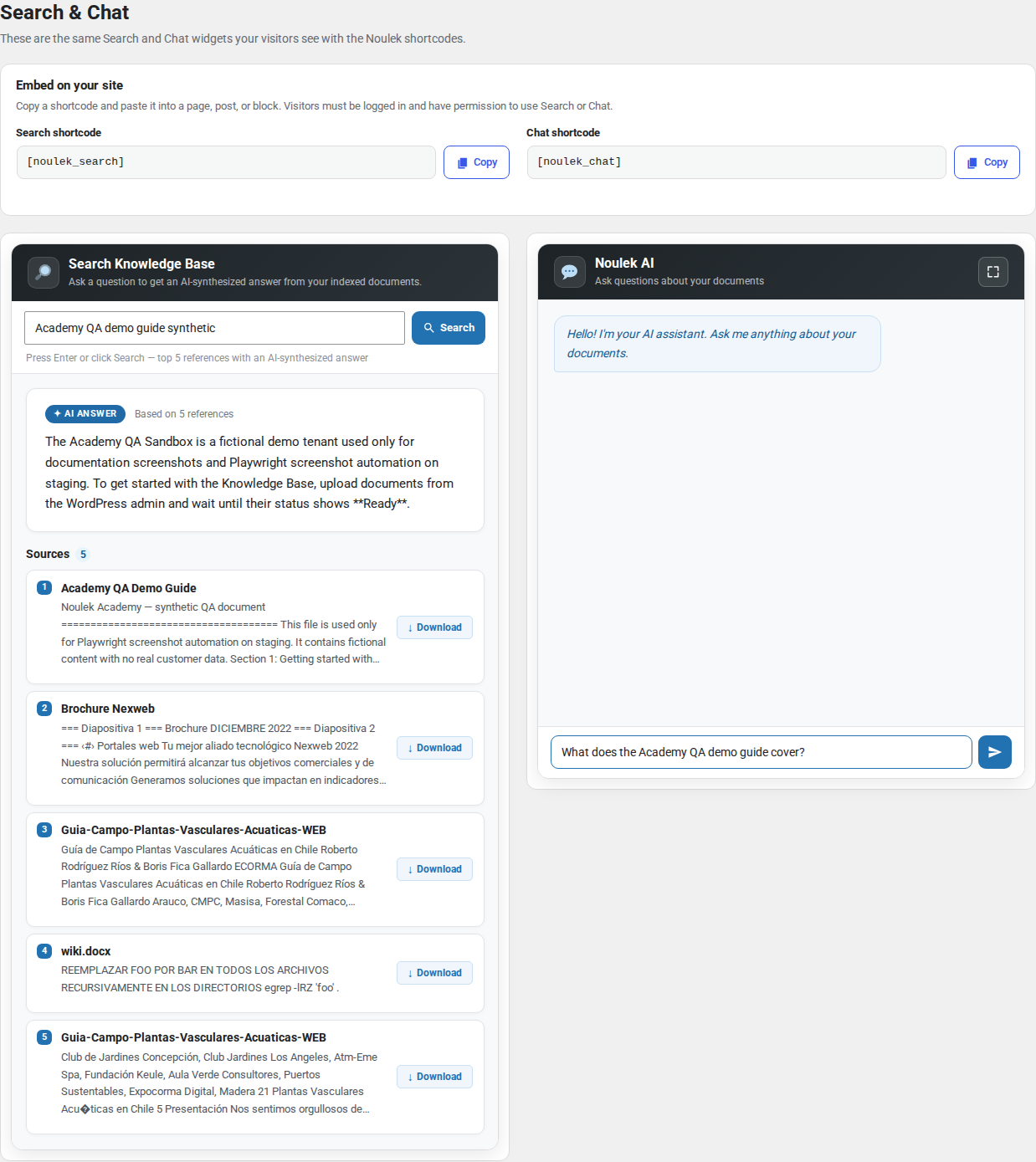
2. Type your question
Enter a clear question about content you know exists in Knowledge Base—for example a topic from a document you uploaded.
Use natural language; you do not need exact keywords from the file.
3. Send the message
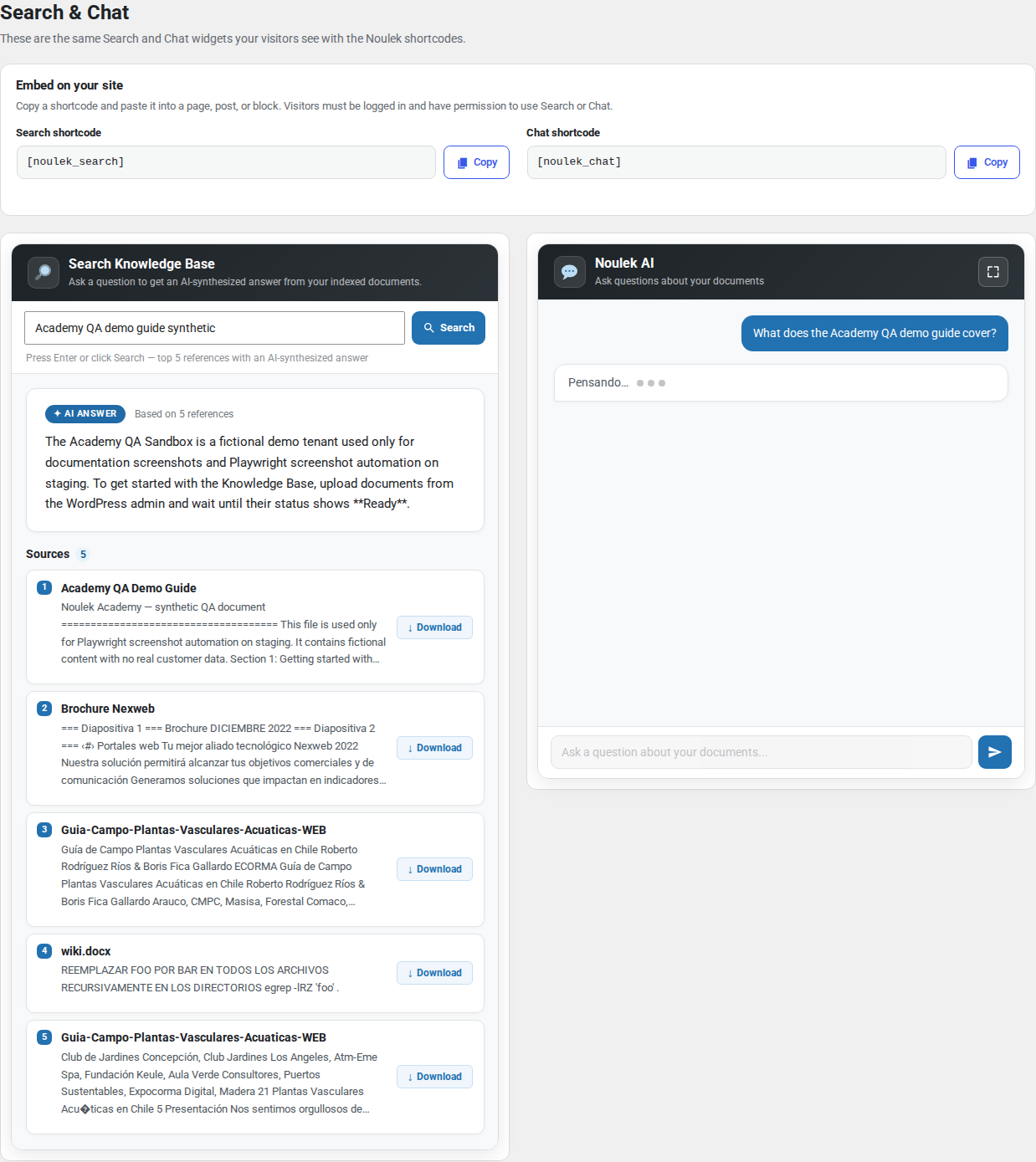
Click Send message (or press Enter if the widget supports it). Noulek retrieves relevant chunks and the LLM generates a reply.
Wait for the response to finish streaming or loading.
4. Verify the answer
Check that:
- The reply addresses your question.
- It reflects information from your documents rather than unrelated generic content.
- If Sources appear below the answer, they reference expected documents (see the sources tutorial for details).
If Chat shows a configuration error, return to Settings and confirm LLM and Vector DB status.
Expected result
Chat returns a coherent answer grounded in indexed Knowledge Base content. You can ask follow-up questions in the same session when the widget supports conversation history.
Tips
- Upload more Ready documents to improve coverage.
- Use specific questions when testing a new upload.
- Test on the public widget after verifying in the admin preview.