Configure a Noulek Embed
Objective
Create or update Embed Export settings on this WordPress site so you can generate an install snippet for an authorized external domain.
Before you start
- Pro or Enterprise plan with an active license on this site.
- WordPress admin access (manage_options).
- The hostname of the external site where the embed will run (see Authorize an external domain).
Procedure
1. Open Embed Export
Go to Noulek AI → Embed Export.
If your plan does not include Embed Export, the screen shows Upgrade required and Embed Export is available on Pro and Enterprise plans.
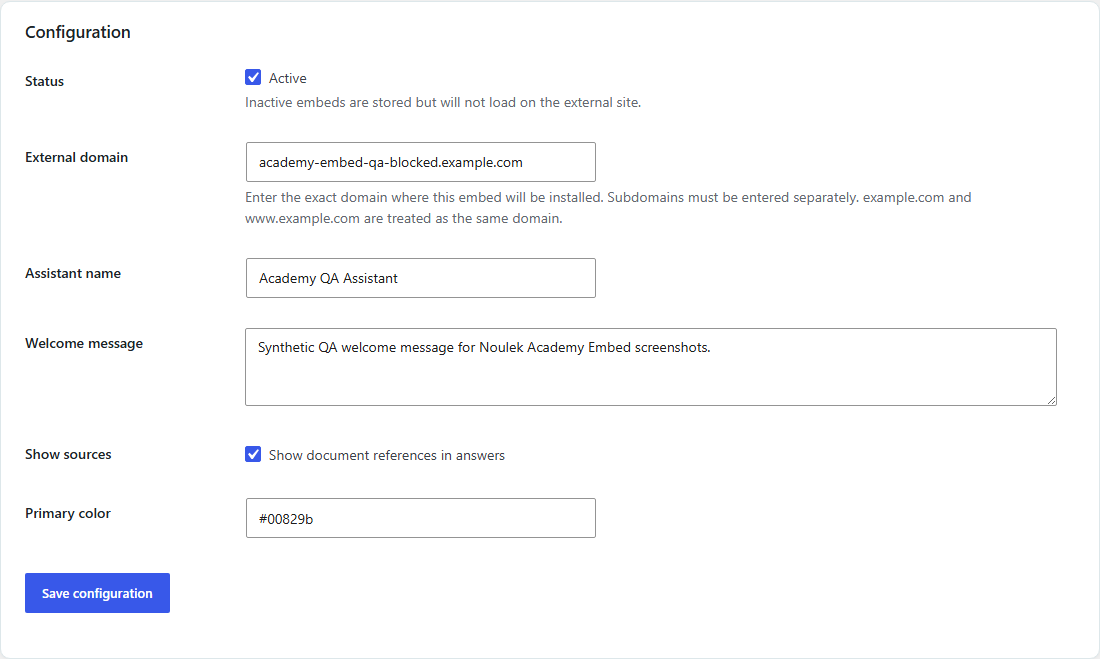
2. Set status and domain
Under Configuration:
- Check Active to allow the embed to load on the authorized domain. Uncheck to store settings but block loading on the external site.
- Enter External domain — the host where you will install the snippet (for example
campus.example.com).
3. Customize the assistant
Optional fields:
| Field | Purpose |
|---|---|
| Assistant name | Title shown in the embed card header. |
| Welcome message | Intro text above the conversation area. |
| Show sources | When enabled, document references can appear with answers. |
| Primary color | Accent color for the embed header and send button (hex value). |
4. Save configuration
Click Save configuration.
A success notice shows Embed Export configuration saved.
If Active is checked without a valid domain, Noulek shows an error such as Enter a valid external domain (for example campus.example.com).
5. Review identifiers and snippet
After a successful save:
- Identifiers shows your Public embed ID (
emb_pub_…). This ID is meant for the external snippet; it is not a secret. - When the domain and ID are set, Install this embed displays the HTML snippet and Copy snippet.
See Add Noulek Embed to an external website for installation steps.
Expected result
Embed Export is saved on this WordPress site with your assistant settings, authorized domain, and (when active) a copy-ready install snippet.
Next: confirm domain rules in Authorize an external domain.