How to search your Knowledge Base
Objective
Learn where Noulek Search lives, how to run a query, and how to read results so you can confirm your Knowledge Base is working.
Before you start
- License active and LLM + Vector DB configured.
- At least one document in Ready status in Knowledge Base.
Where Search is located
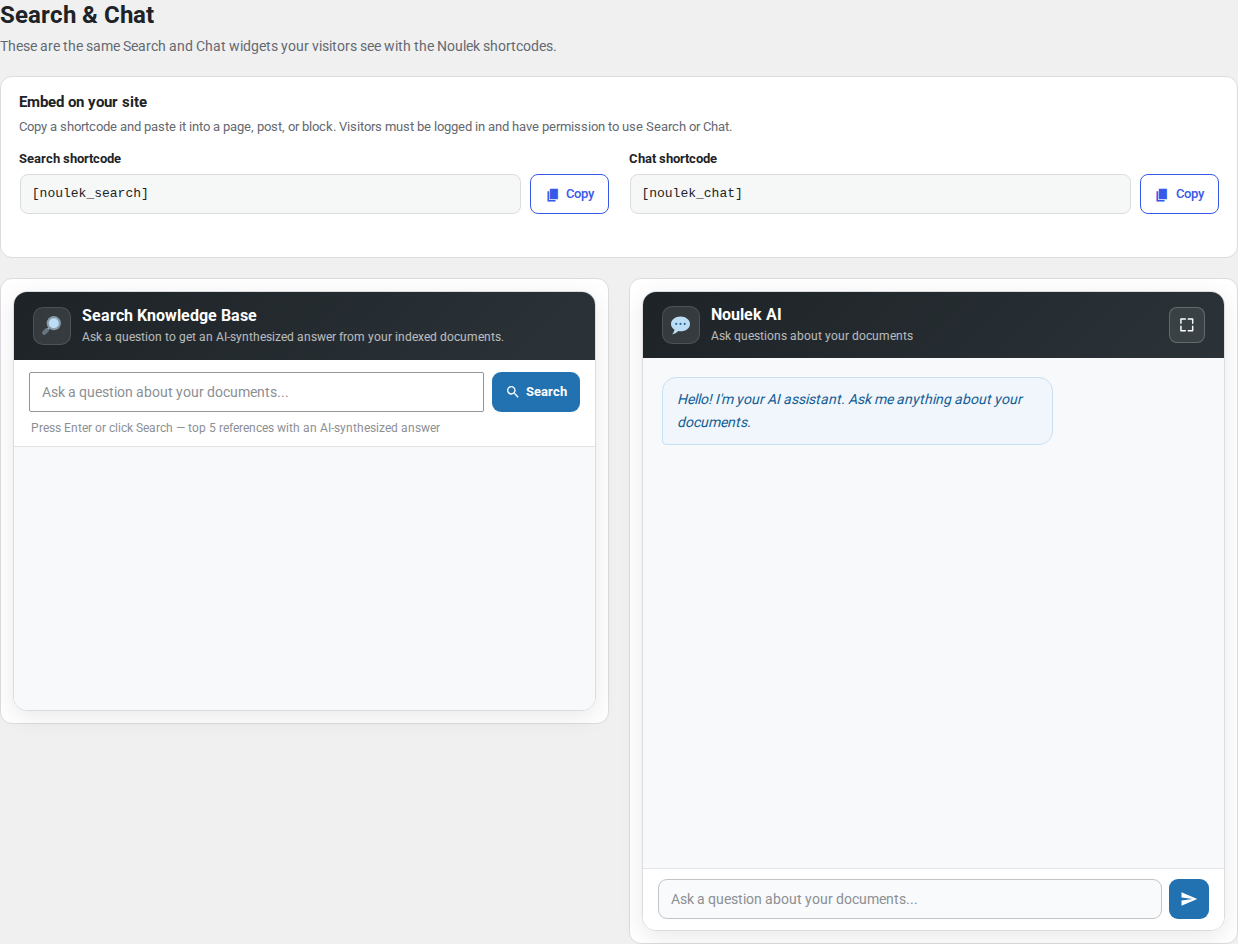
Admin preview: Noulek AI → Search & Chat. The page includes search configuration and a preview of the search widget.
Public site: Embed search using the Noulek search shortcode or block on a page or post. The widget label is typically Search Knowledge Base with a Search button.
Procedure
1. Open Search & Chat
In WordPress, go to Noulek AI → Search & Chat.
Review search-related settings on this screen (for example result limits or display options, depending on your version).
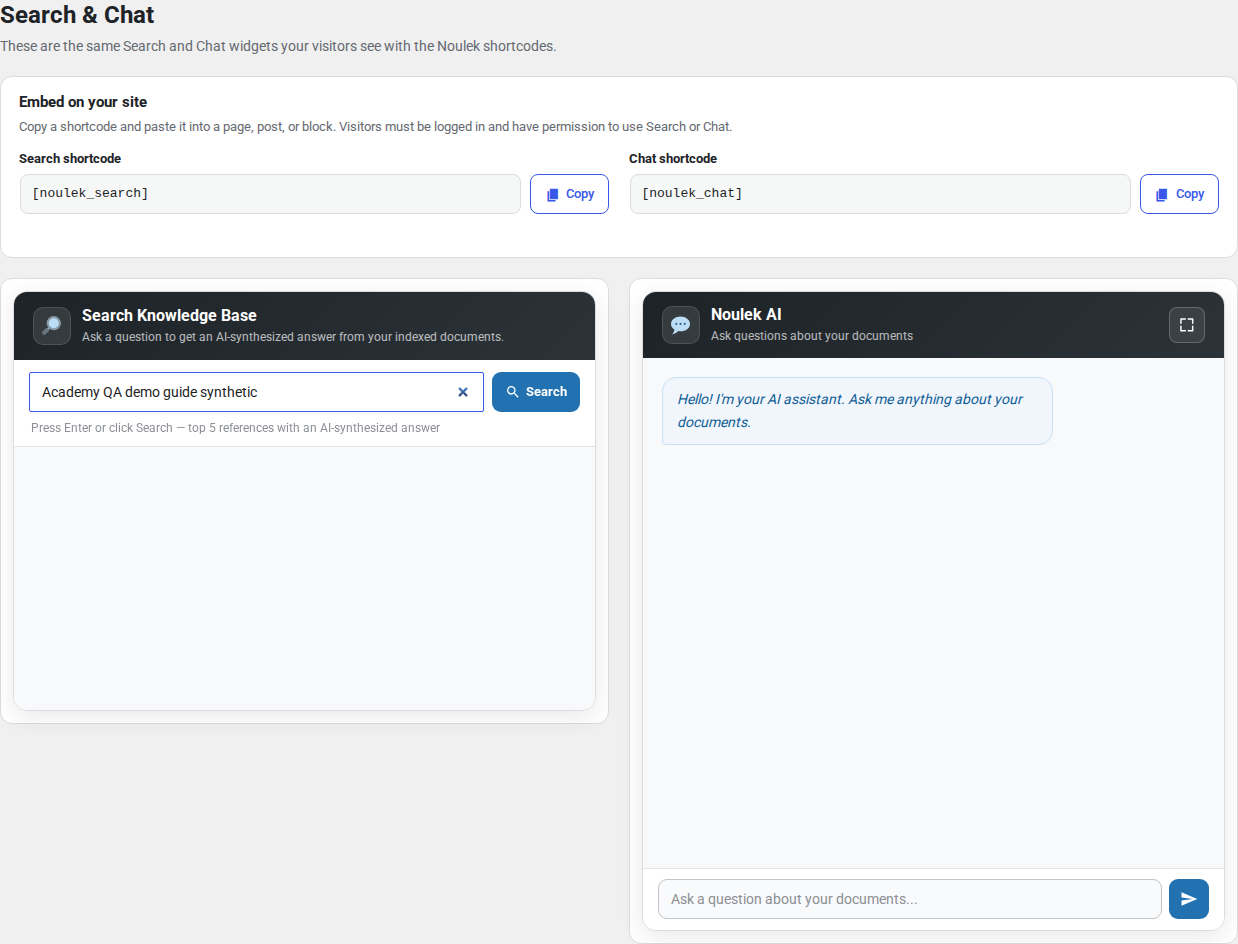
2. Enter a query
In the preview widget or on your public page, type a question or keywords related to content you uploaded. Click Search or submit the form.
3. Read the results
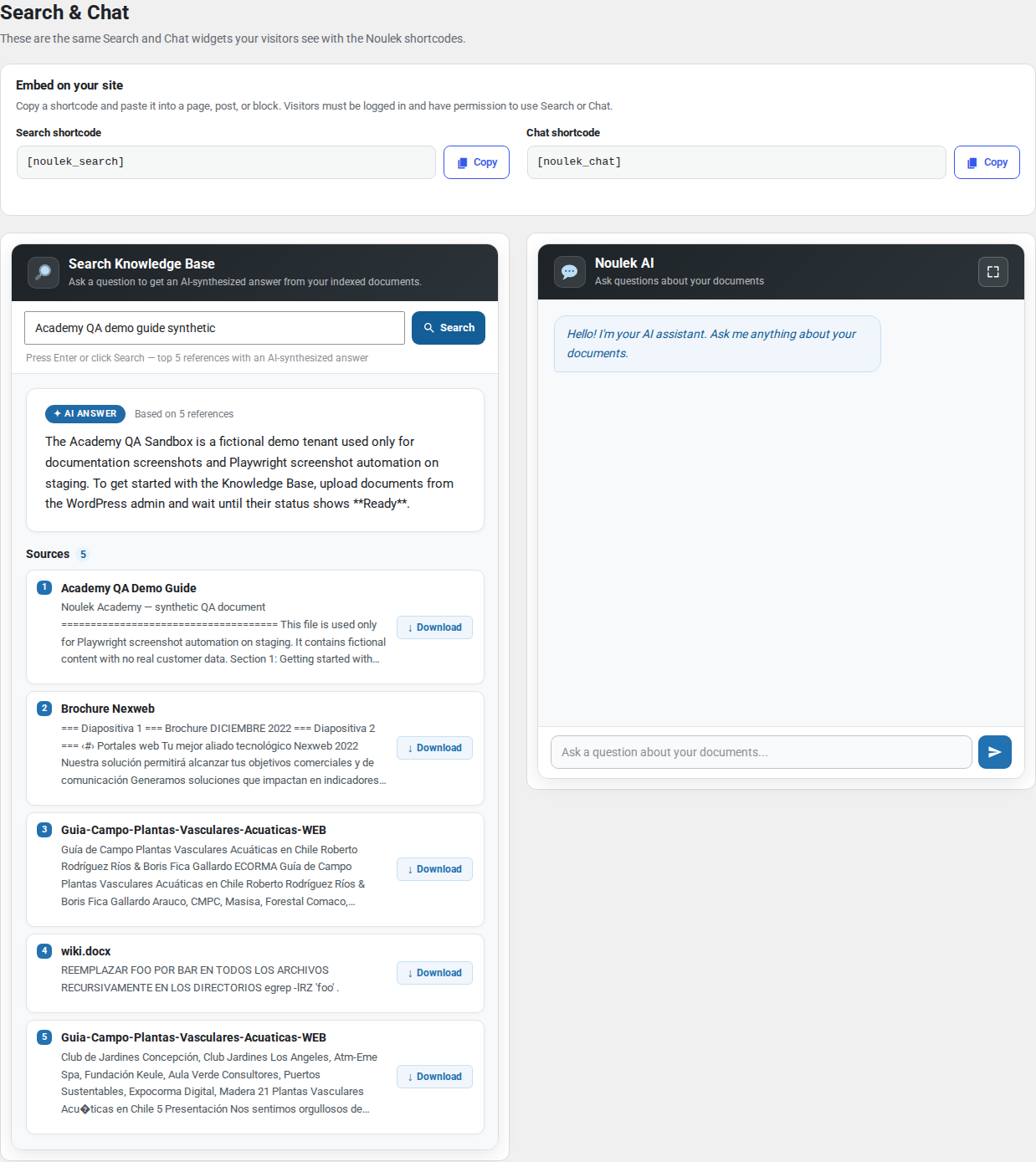
Noulek returns matching content from your indexed documents. Depending on configuration, you may see:
- AI Answer — A synthesized answer from retrieved chunks.
- Sources — References to documents or passages that supported the answer.
4. Verify useful results
Confirm that:
- Results relate to your uploaded documents, not generic unrelated text.
- Sources point to the expected document names or snippets.
- Empty or error states appear only when no content matches or configuration is incomplete.
If results are empty, confirm documents are Ready, Vector DB is connected, and your query terms appear in the indexed text.
Expected result
Search returns relevant AI Answer and Sources grounded in Knowledge Base content. You can repeat with different queries to validate coverage of your uploaded documents.
Related features
Search and Chat share the same indexed Knowledge Base. Answers improve as you add more Ready documents and keep connections healthy in Settings.