Check plan usage in Settings
Objective
See how many documents and how much storage your site uses compared to Noulek plan limits, so you can plan uploads before hitting capacity.
Before you start
Open Noulek AI → Settings and select the Usage tab. Usage meters are most informative when your license is active and plan limits are loaded from Noulek Cloud.
Procedure
1. Open Usage
Go to Noulek AI → Settings and click Usage under the Operations group.
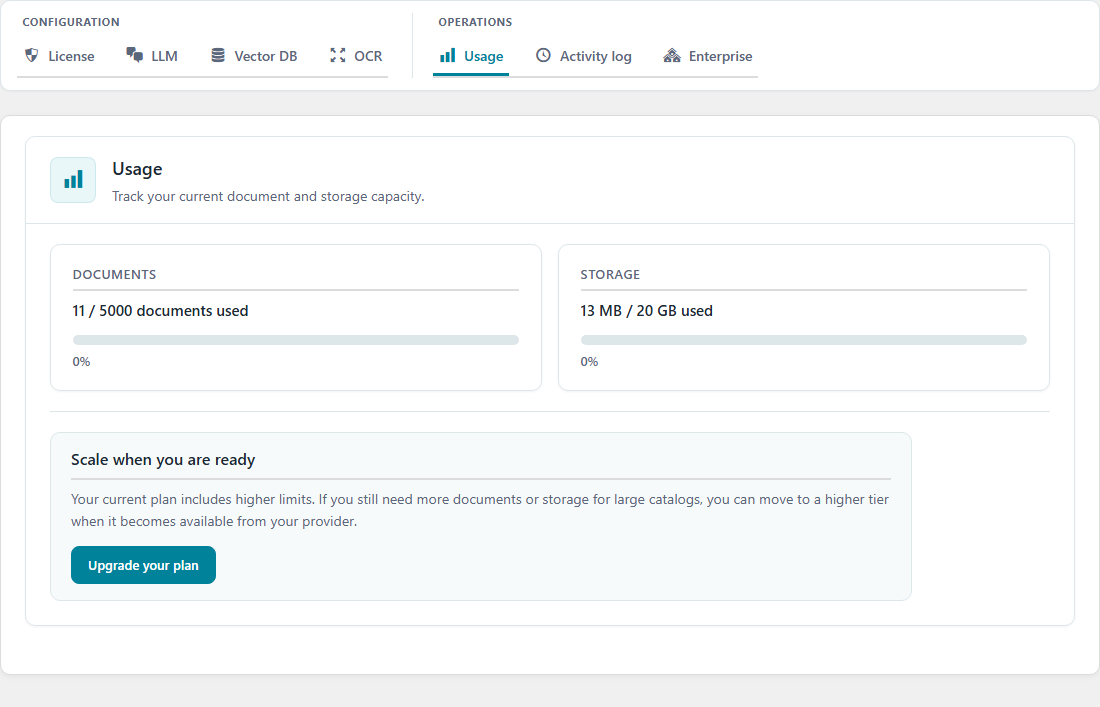
2. Read document usage
The Documents card shows:
- Count of documents used versus your plan cap (for example
12 / 50 documents used) when limits are available. - A progress bar and percentage when a cap is known.
- A message such as Connect and validate your license to see the document quota from your plan when limits are not yet exposed.
3. Read storage usage
The Storage card shows bytes used versus your storage cap with a similar progress display, or a note that the cap appears when the license exposes limits.
4. Interpret capacity messages
When usage is high, an overall banner may appear:
- You still have available capacity
- You are getting close to your plan limit
- You are almost at your plan limit
- You have reached your current plan capacity
Use these messages before large upload batches.
5. Upgrade when needed
The Upgrade your plan button appears at the bottom of the Usage tab. Billing and checkout are handled outside this WordPress screen — typically through the Noulek Customer Portal or your provider’s upgrade flow when configured for your site.
WordPress shows usage and limits; it does not process payments directly.
Expected result
You can see current document and storage consumption on Settings → Usage and know whether you are approaching plan limits before uploads fail or stall.
For license and plan name details, use Check license status on the License tab.