How to delete a document
Objective
Learn how to delete an individual document from Documents list and what happens to indexed content.
Before you start
You need permission to manage documents in Knowledge Base. Delete is not available while the document is in Processing (extraction, chunking, or indexing in progress).
Procedure
1. Locate the document
Open Noulek AI → Knowledge Base → Documents list and find the document in the table. Use Search documents... if the list is long.
2. Open More actions
In the Actions column, open More actions (⋮) on the row. When the document is not processing, you see Delete.
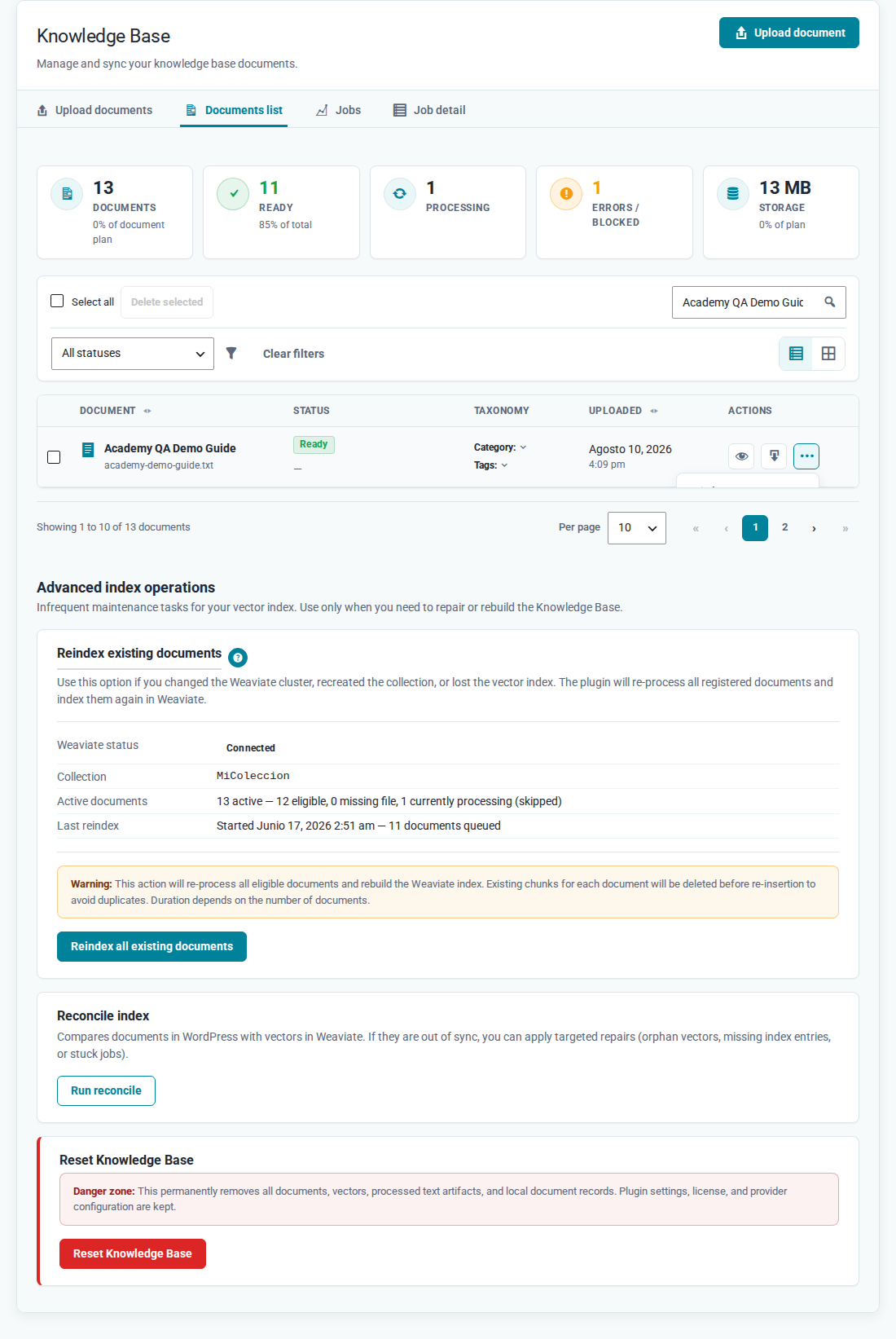
3. Confirm deletion
Click Delete. WordPress shows a confirmation with the document name and warns that indexed chunks will be permanently removed and the document will no longer be available for Search and Chat.
Confirm only if you want to delete the document.
4. Verify the result
After you confirm, the row disappears from the list. If it was the last document on the site, you may see All documents have been deleted.
Delete multiple documents
To delete several files at once:
- Select row checkboxes (or use Select all).
- Click Delete selected (or Delete selected (N) when items are selected).
- Confirm: Delete N selected document(s)? This will remove their vectors from Weaviate first.
When finished, you see a summary such as Bulk delete completed: X deleted, Y failed.
Expected result
The document no longer appears in Documents list and its indexed content has been removed. It will not be available for Search or Chat.