How to view Knowledge Base documents
Objective
Learn how to open the Knowledge Base document list, read summary metrics, and use search and filters to find a specific document.
Procedure
1. Open Documents list
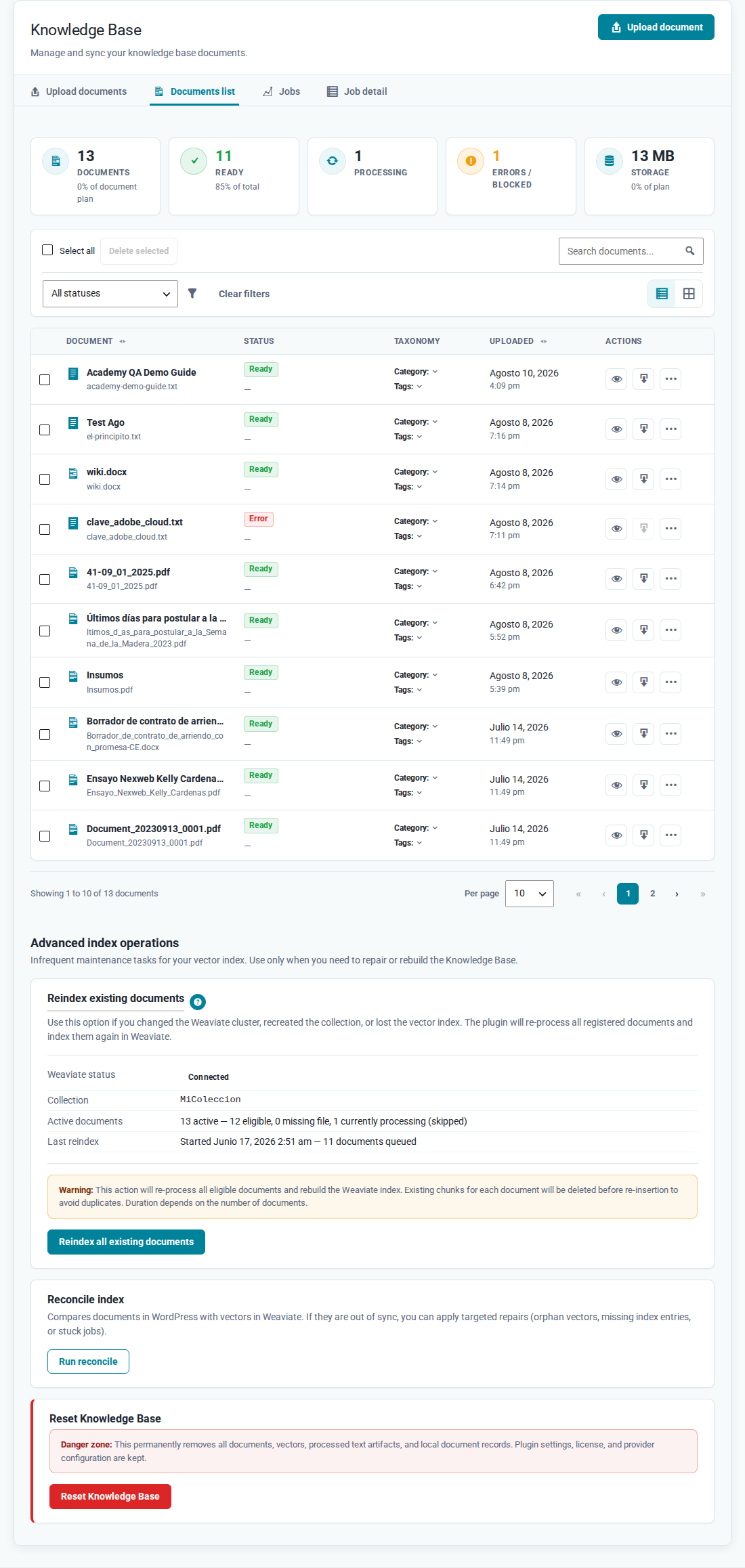
In WordPress, go to Noulek AI → Knowledge Base and open the Documents list tab.
The header area shows operational summary: total Documents, how many are Ready, in Processing, with Errors / Blocked, and Storage usage according to your plan.
2. Read the document table
Each row includes:
- Document — editorial name and original file name.
- Status — for example Ready, Processing, Error, or Blocked.
- Taxonomy — assigned category and tags.
- Uploaded — upload date.
- Actions — view job details, download processed text (when available), and more actions.
If no documents exist yet, you see: No documents have been uploaded yet. Upload your first document to make it available for AI search and chat.
3. Search for a document
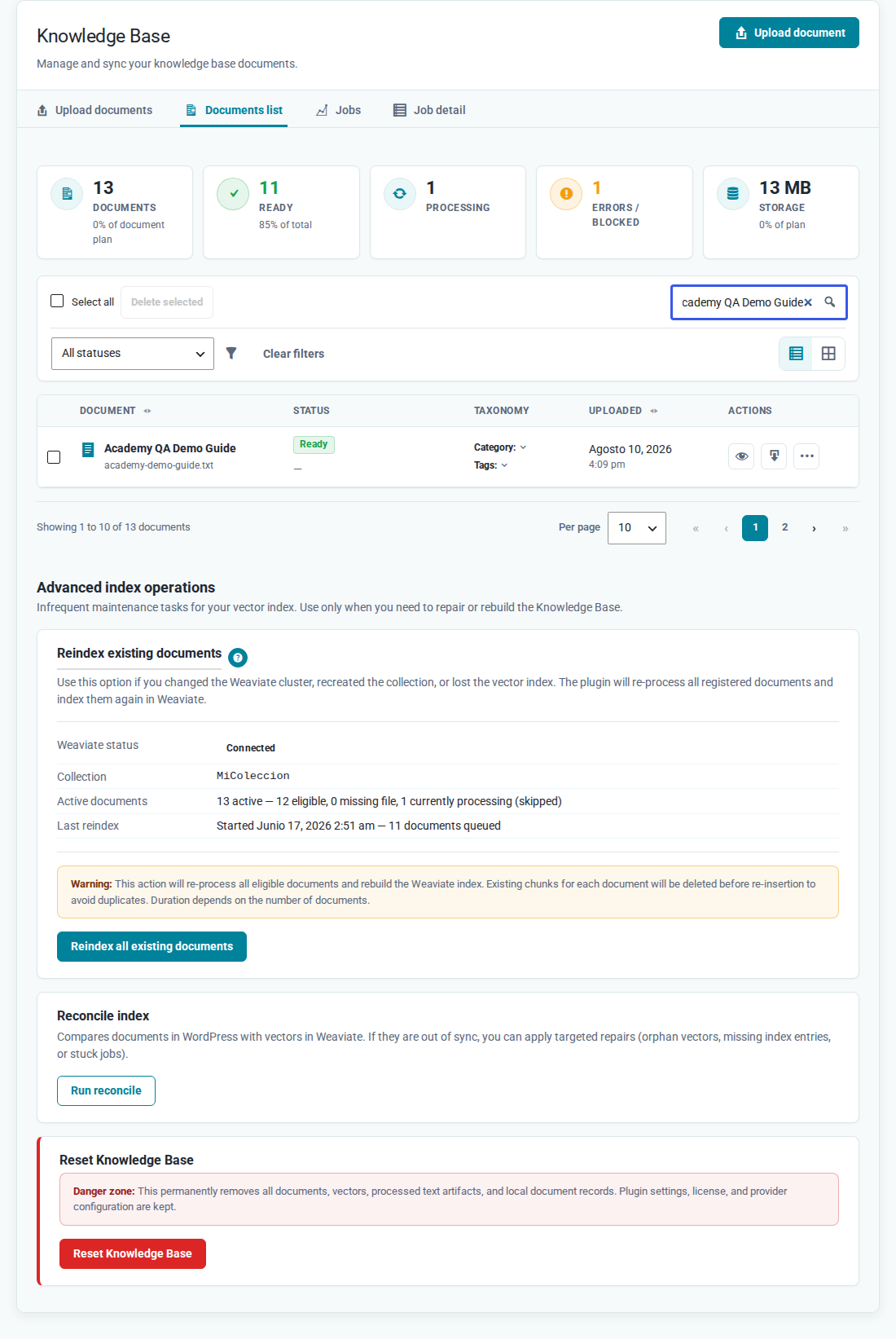
Use Search documents... to filter by name. Search applies to the visible list without reloading the page.
4. Filter by status or taxonomy
The status dropdown includes All statuses, Ready, Processing, Error / blocked, Requires reindex, and Requires OCR. You can also filter by Category and Tag, and switch between List view and Grid view.
If nothing matches, you see: No documents match the filters. Try clearing the search or filters. Use Clear filters to reset the view.
Expected result
You can find the document you need in Documents list with its current status and available actions. Ready documents are indexed and available for Search and Chat.