Configure OCR settings
Objective
Configure OCR in Noulek so image-only or scanned documents can be processed during Knowledge Base upload when your plan includes OCR capacity.
Before you start
- Noulek should be active on this site (see Check license status).
- OCR requires a plan that includes OCR. On Free or plans without OCR, the OCR tab shows an upgrade message instead of provider fields.
- On Pro plans with Google Cloud Vision OCR, you need a Google Cloud Vision API key with the Cloud Vision API enabled.
What OCR configuration controls
OCR lets Noulek extract text from scanned PDFs, JPG and PNG images, and similar visual files during document ingestion. Without OCR, plain text extraction may not read those files.
Configuration is on Capabilities → OCR, not on the upload screen itself.
Procedure
1. Open OCR settings
Go to Noulek AI → Capabilities and open OCR (Configure).
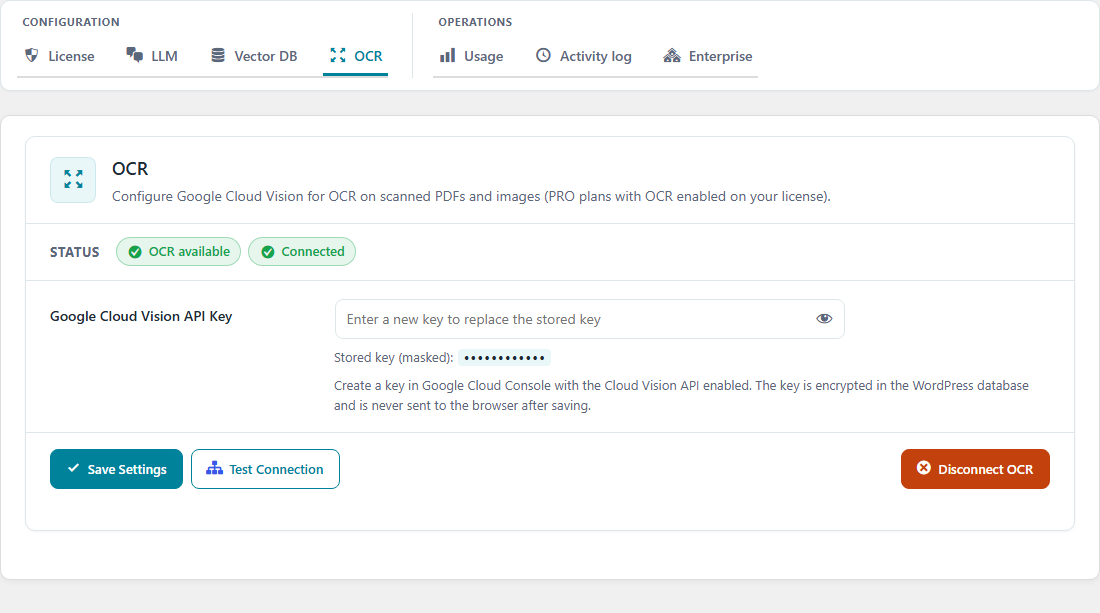
The header shows status pills:
- OCR available or OCR Not available — whether your current plan includes OCR capacity.
- Connected or Not connected — whether a provider key is stored and validated (shown when OCR is available on your plan).
2. If OCR is not on your plan
When OCR is not included, Noulek displays an Available on PRO plan upsell card with Enable OCR with PRO plan. That button opens the License tab by default so you can refresh your plan or upgrade through Noulek Cloud.
You cannot save a Google Cloud Vision key until your license exposes OCR capacity.
3. Configure Google Cloud Vision (Pro with OCR)
When your plan allows Pro Google Cloud Vision OCR, the tab shows:
- Google Cloud Vision API Key — paste your key (stored encrypted in WordPress; not sent to the browser after saving).
- Save Settings — saves the key and runs a connection check.
- Test Connection — validates the key without changing other settings.
- Disconnect OCR — removes the stored key after confirmation (shown when a key is already saved).
After a successful save or test, the Connected status pill should reflect a healthy connection.
4. When OCR applies
OCR runs during Knowledge Base document processing when you upload supported files that need visual text extraction (for example scanned PDFs or images). It does not replace normal upload steps — see How to upload a document.
Expected result
On a plan with OCR, Capabilities → OCR shows OCR available and Connected after you save a valid Google Cloud Vision API key. Scanned or image-based uploads can then be processed through the standard Knowledge Base upload flow.
If status stays Not connected, verify the API key, Cloud Vision API enablement in Google Cloud, and click Refresh status on the License tab if you recently upgraded your plan.