Configure LLM and Vector DB
Objective
Configure the LLM (language model) and Vector DB connections in Noulek Settings. Both are required before Search and Chat can retrieve indexed content and generate answers.
Before you start
- Noulek license should be active (see How to activate Noulek).
- You need credentials for your chosen LLM provider and vector database (or use Noulek-supported defaults where offered).
Knowledge Base does not require LLM/Vector DB to upload files, but indexing embeddings typically needs Vector DB configured.
Procedure
1. Open Settings
Go to Noulek AI → Settings.
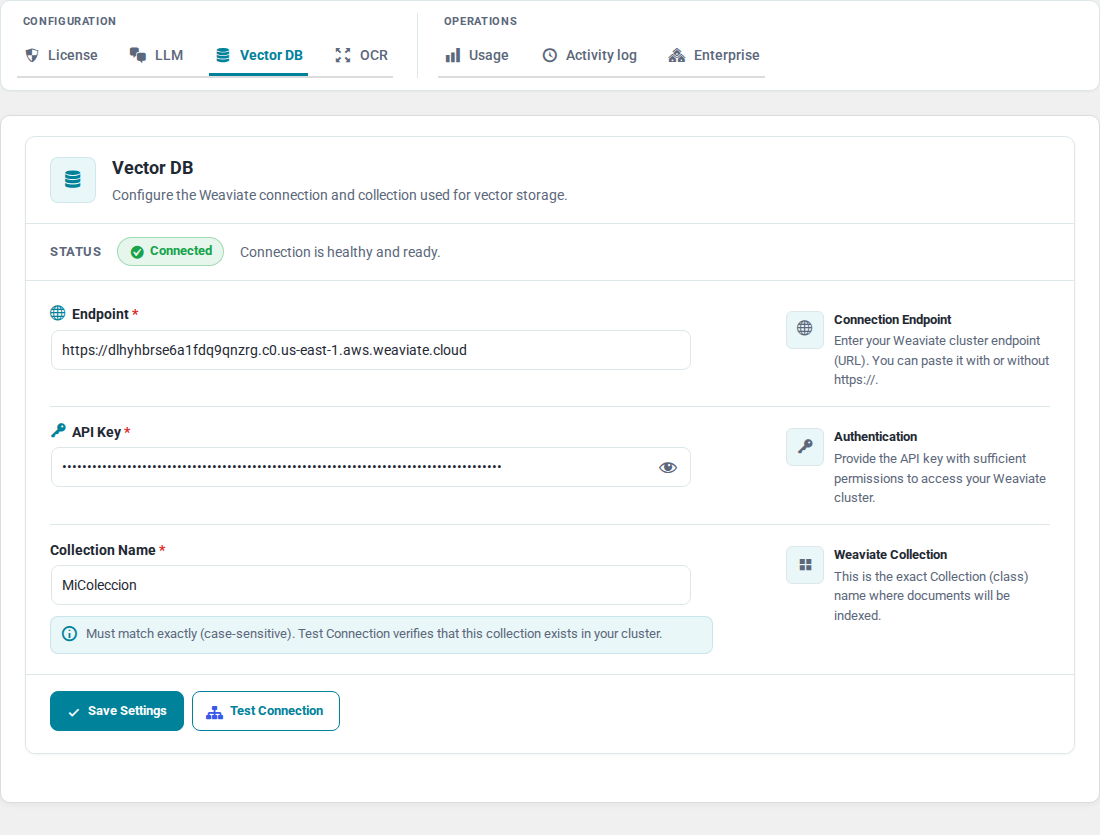
2. Configure LLM
Open the LLM section. Select your provider, enter API credentials or connection details as prompted, and save.
The UI shows whether the LLM connection is valid. Resolve any validation errors before testing Chat.
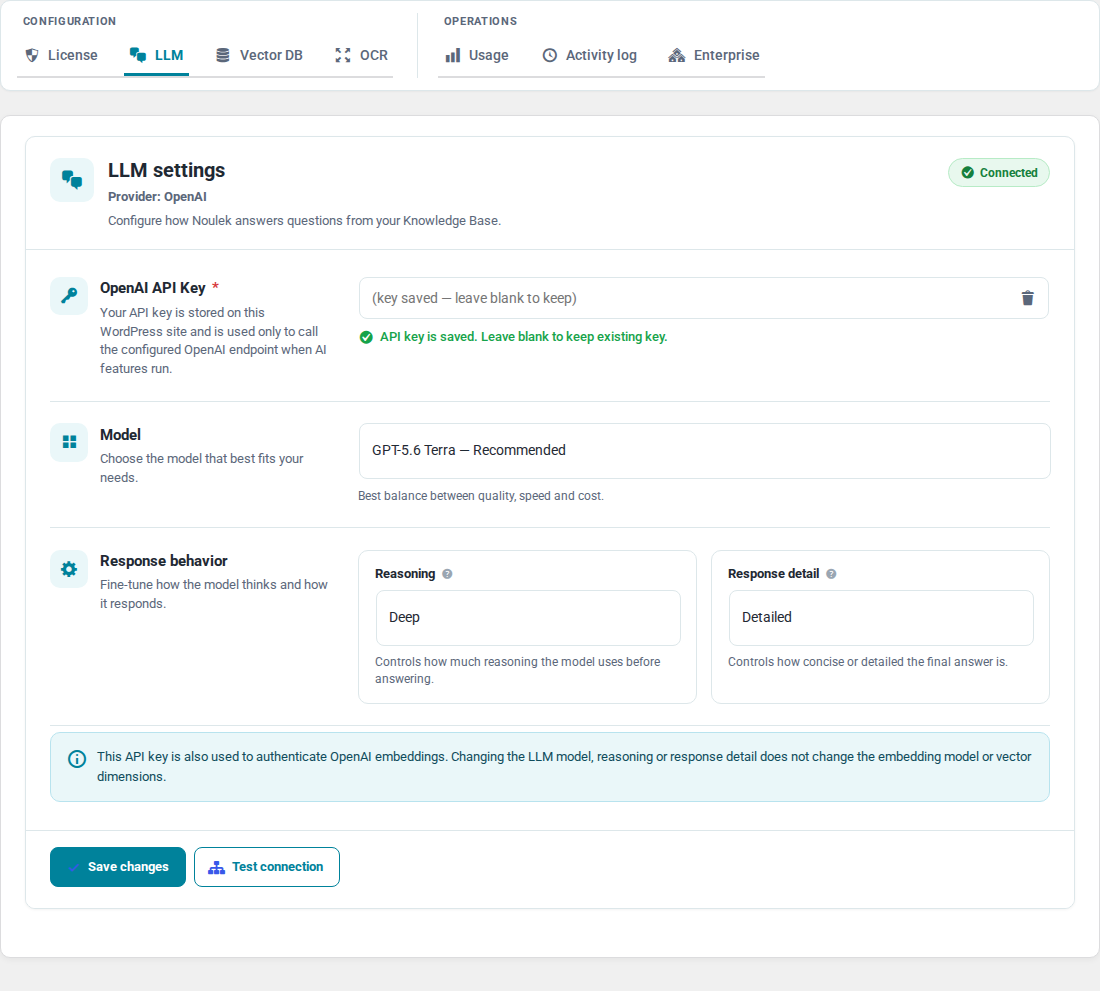
3. Configure Vector DB
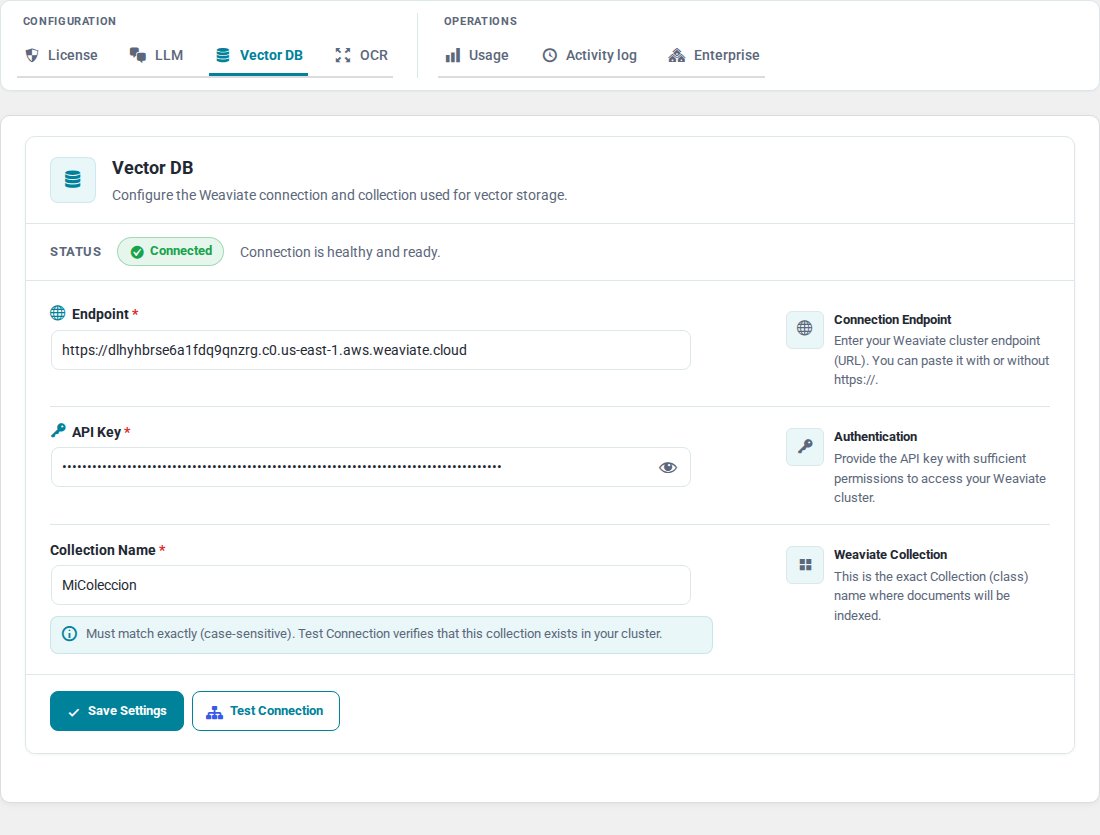
Open the Vector DB section. Enter host, API key, or other required fields for your vector store (for example Weaviate when used by your deployment).
Save and confirm the connection test succeeds if the screen offers one.
4. Verify readiness
Return to Dashboard or Search & Chat. Warnings about missing LLM or Vector DB should clear when both are configured.
Upload a test document to Knowledge Base if you have not already, and wait for Ready status before testing Search or Chat.
Expected result
Settings shows valid LLM and Vector DB connections. Search and Chat can retrieve chunks from indexed documents and generate answers instead of showing configuration errors.
Note on Knowledge Base
Noulek does not have a separate “create Knowledge Base” action. Knowledge Base is available once the plugin is active; you add content by uploading documents under Knowledge Base → Upload documents.