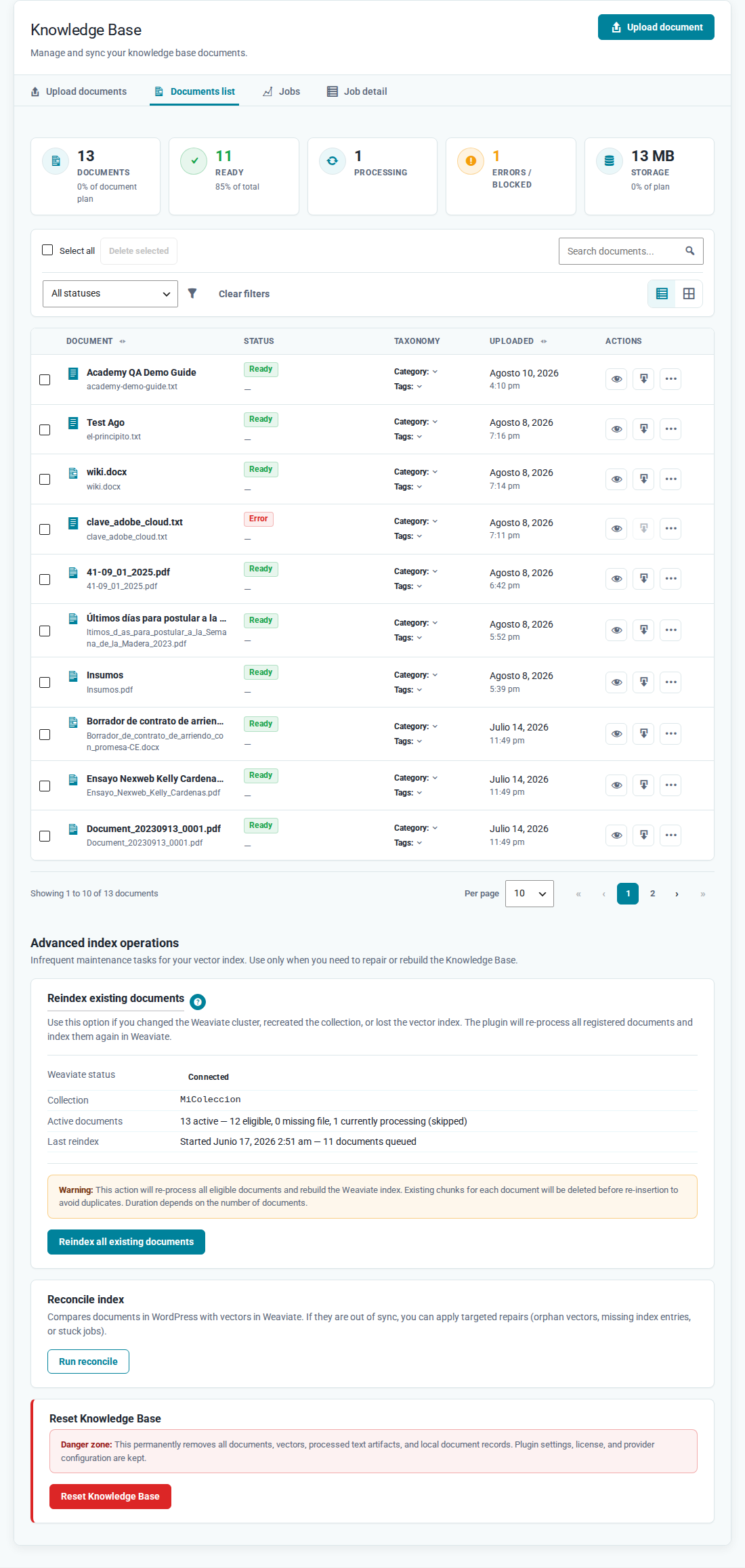
How to upload a document to Noulek
Objective
Learn how to upload a document to Noulek Knowledge Base from the WordPress admin so the content can be indexed and used in Search and Chat.
Before you start
You need access to the WordPress dashboard with permission to manage Knowledge Base (Noulek AI → Knowledge Base). Your file must be in a supported format (see the supported formats guide if needed).
Procedure
1. Open Knowledge Base
In the WordPress dashboard, open Noulek AI and select Knowledge Base. Open the Upload documents tab if it is not already active.
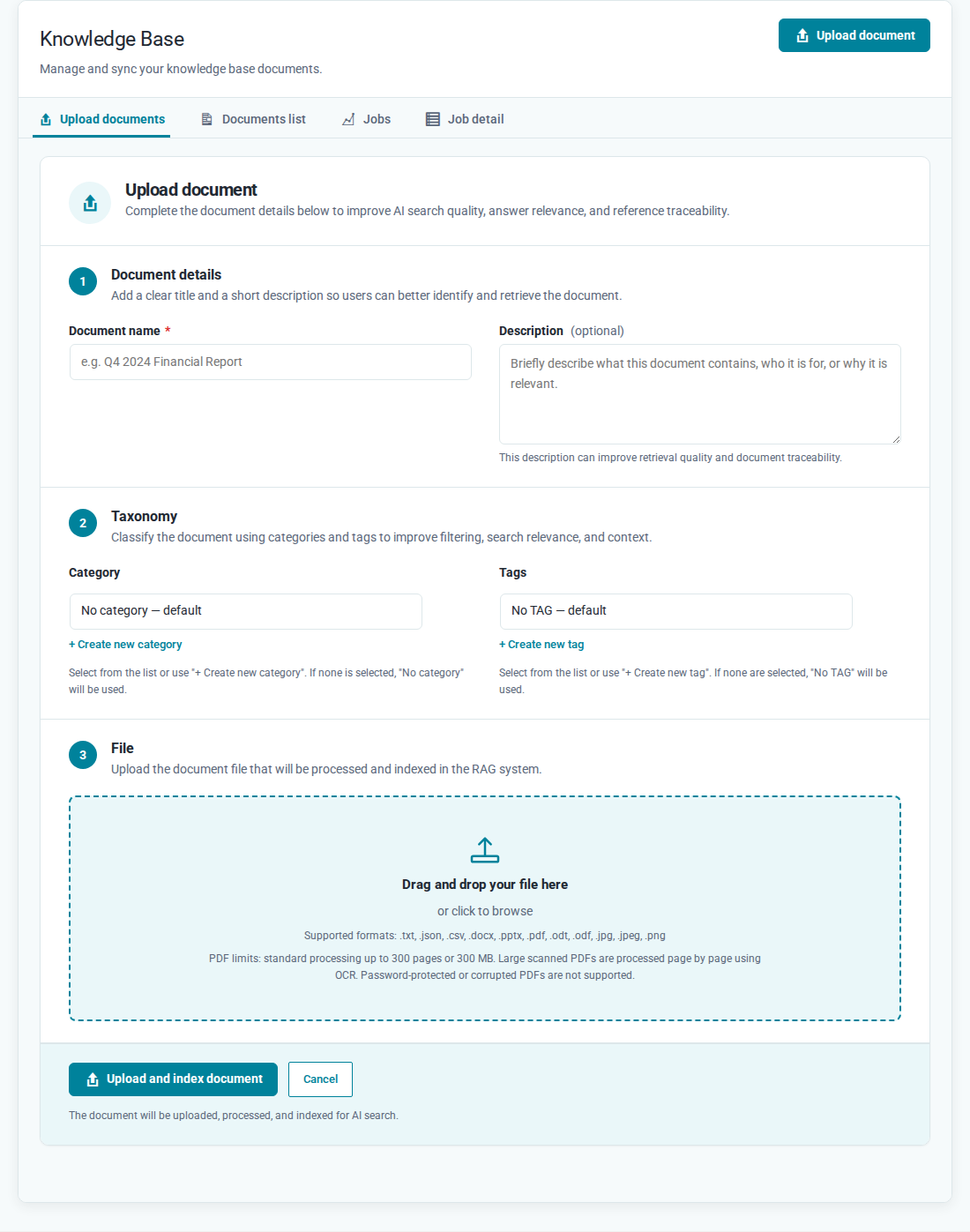
2. Complete document details
Enter a Document name (required) and an optional Description. Then select your file from your computer or drag it into the Drag and drop your file here area.
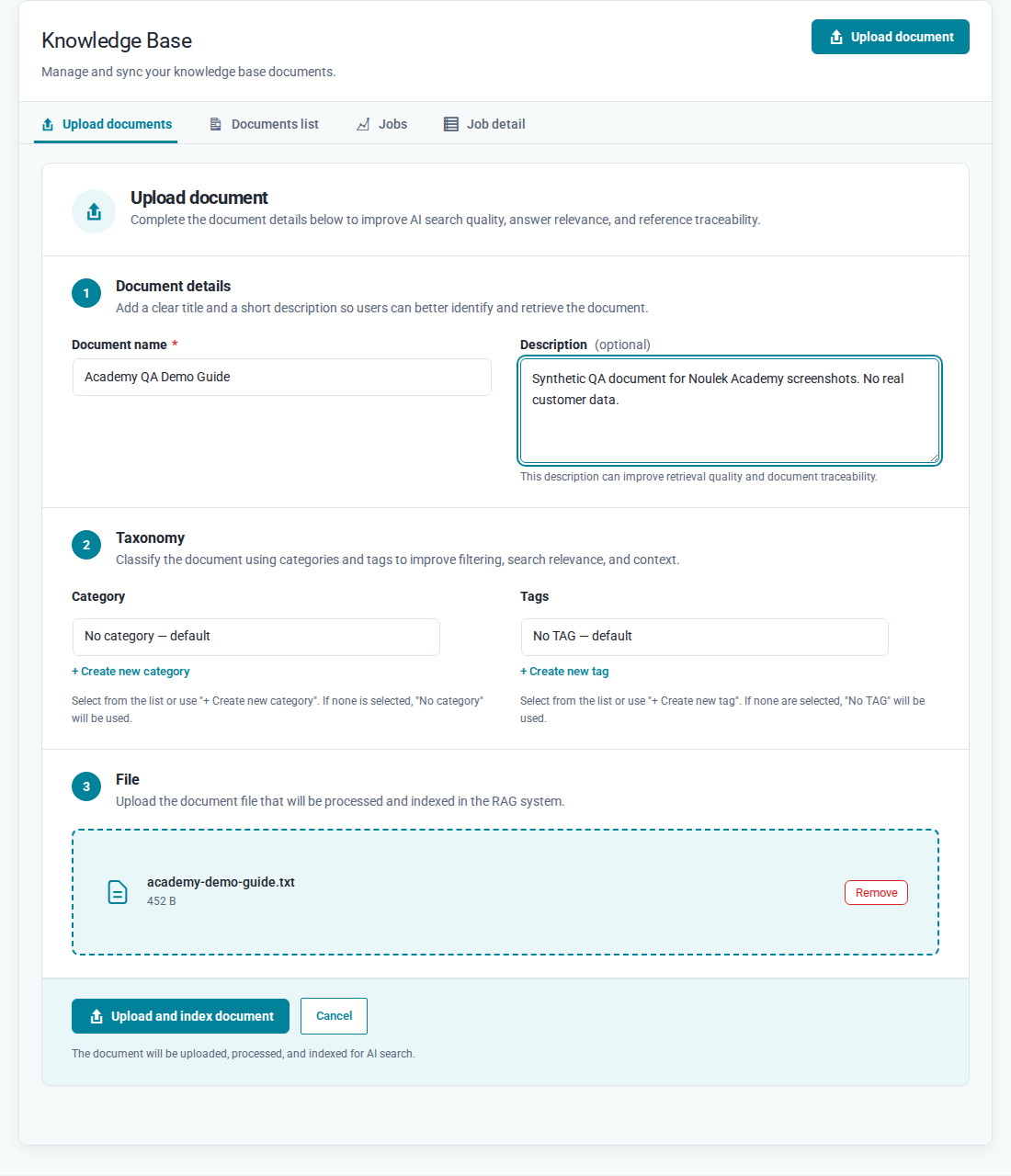
3. Upload and index
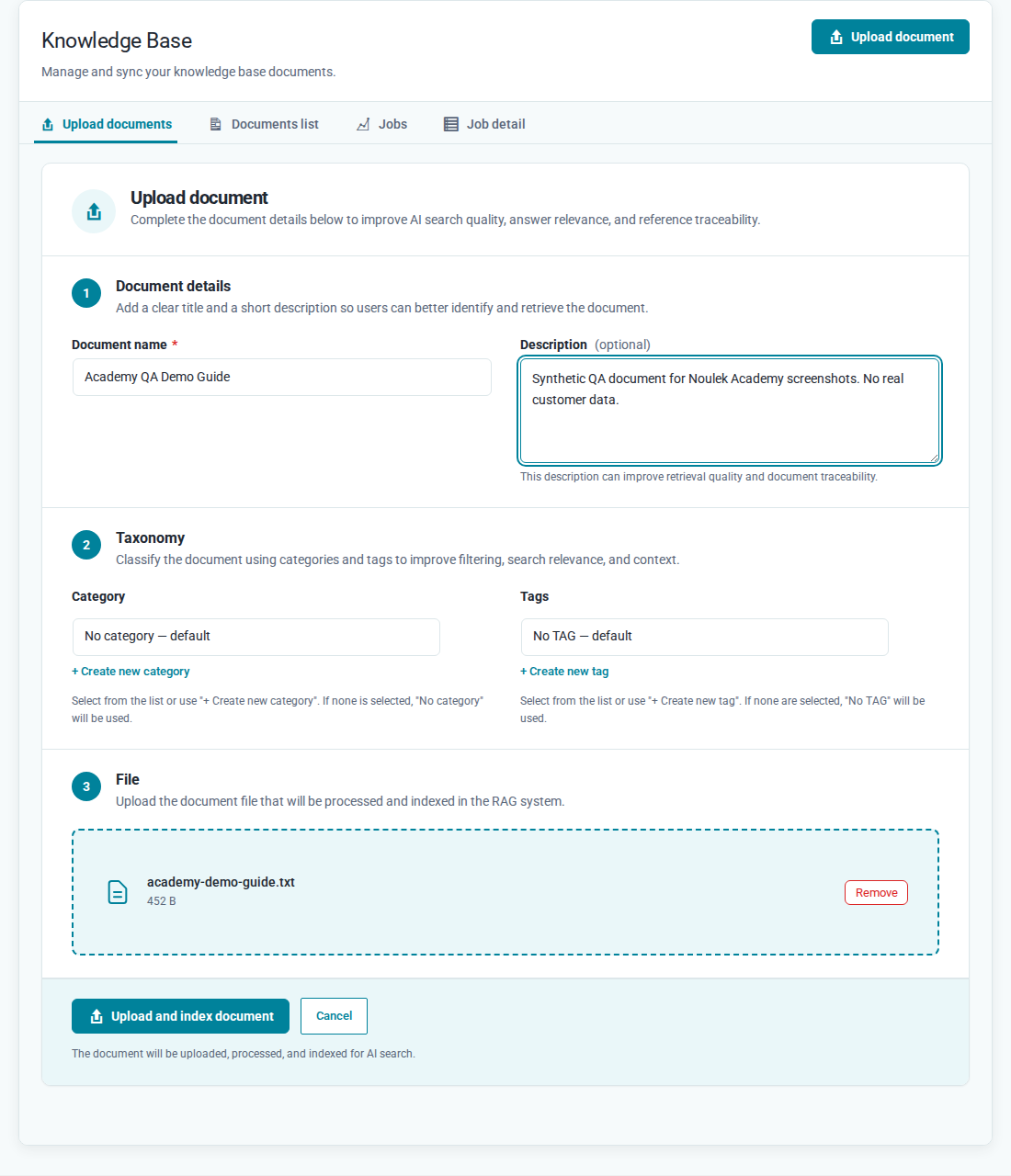
Click Upload and index document. Noulek validates the file and starts processing. After you submit, WordPress redirects you to Job detail.
4. Verify in Documents list
Open the Documents list tab. While processing runs, the document status may show Processing. The list refreshes automatically every few seconds.
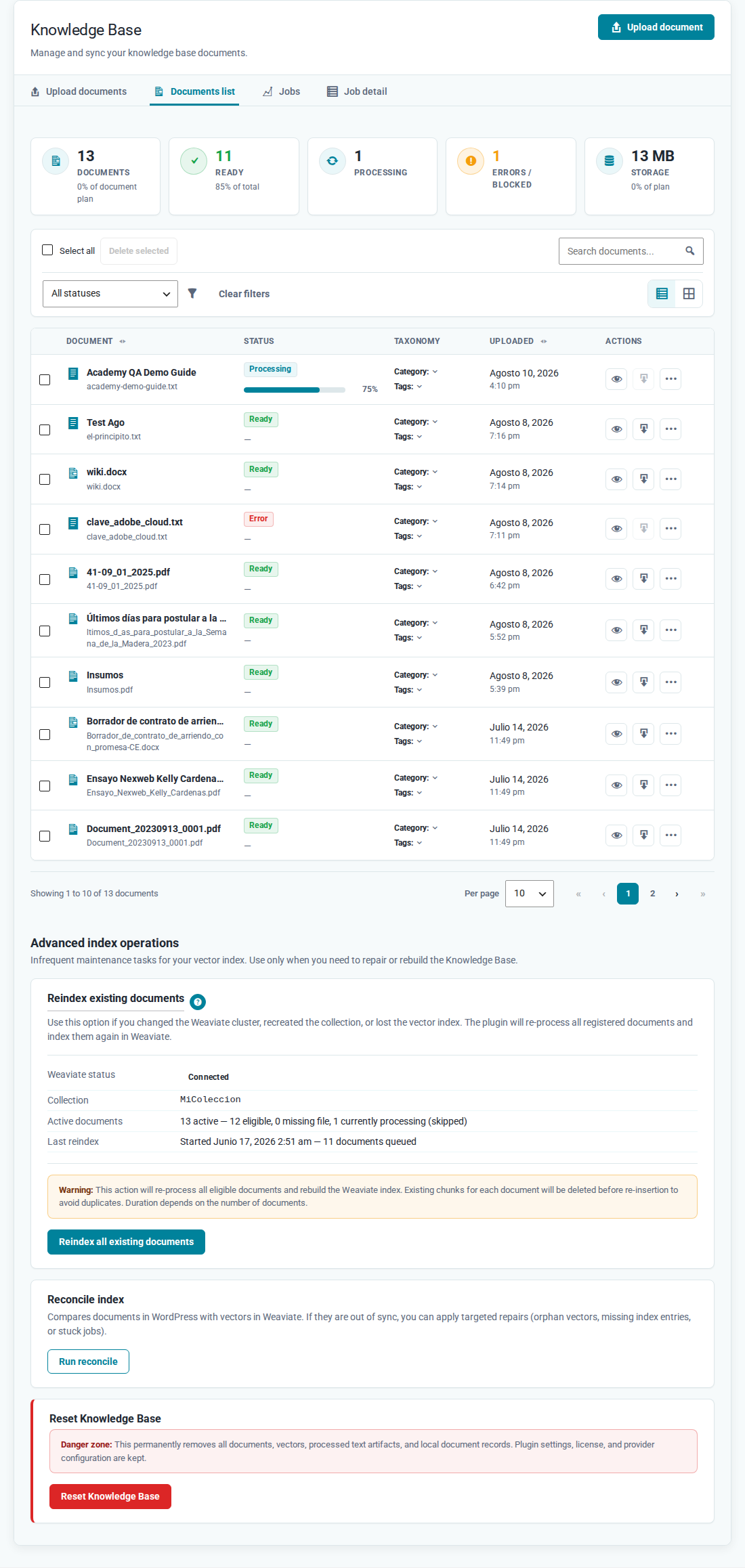
Expected result
The document appears in Documents list with status Ready. The content is then available for search and assistant answers.