How to check document processing
Objective
Learn how to follow document processing after upload: review Job detail, interpret Processing, and confirm when the document is Ready.
Before you start
You should have uploaded at least one document. If you just submitted a file, WordPress usually opens Job detail automatically.
Procedure
1. Open Job detail after upload
After you click Upload and index document, Noulek redirects to Knowledge Base → Job detail. This screen shows Job ID, Document, Status, Progress, and the Pipeline list (Extraction, Chunking, Embedding, Indexing).
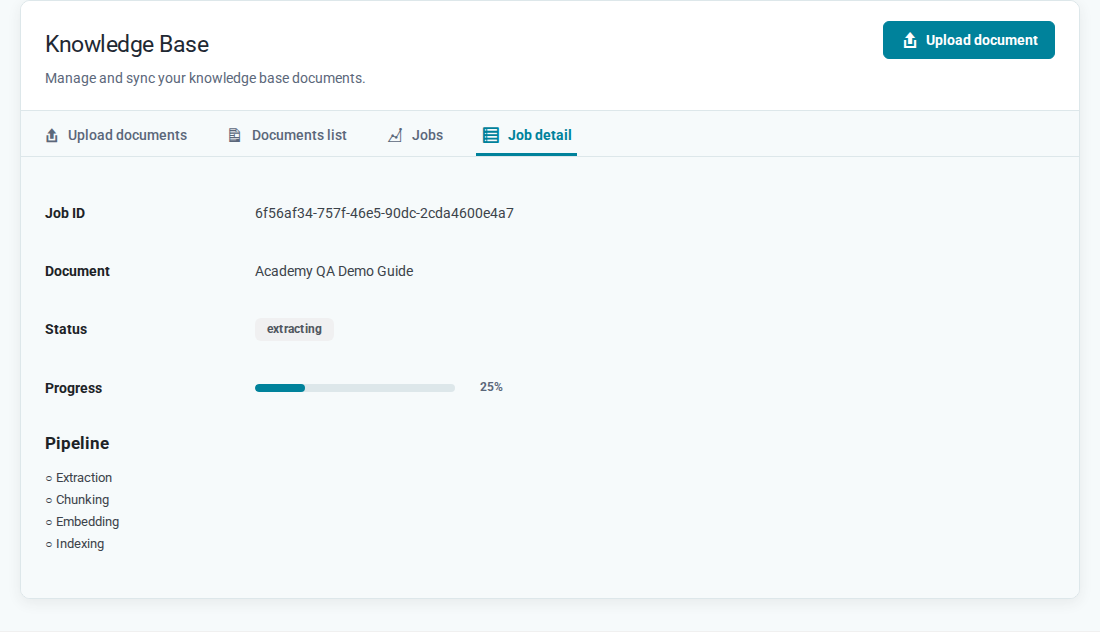
Note: Job detail does not auto-refresh in the current UI. If the job is still running, reload the page to see updated progress.
2. Check status in Documents list
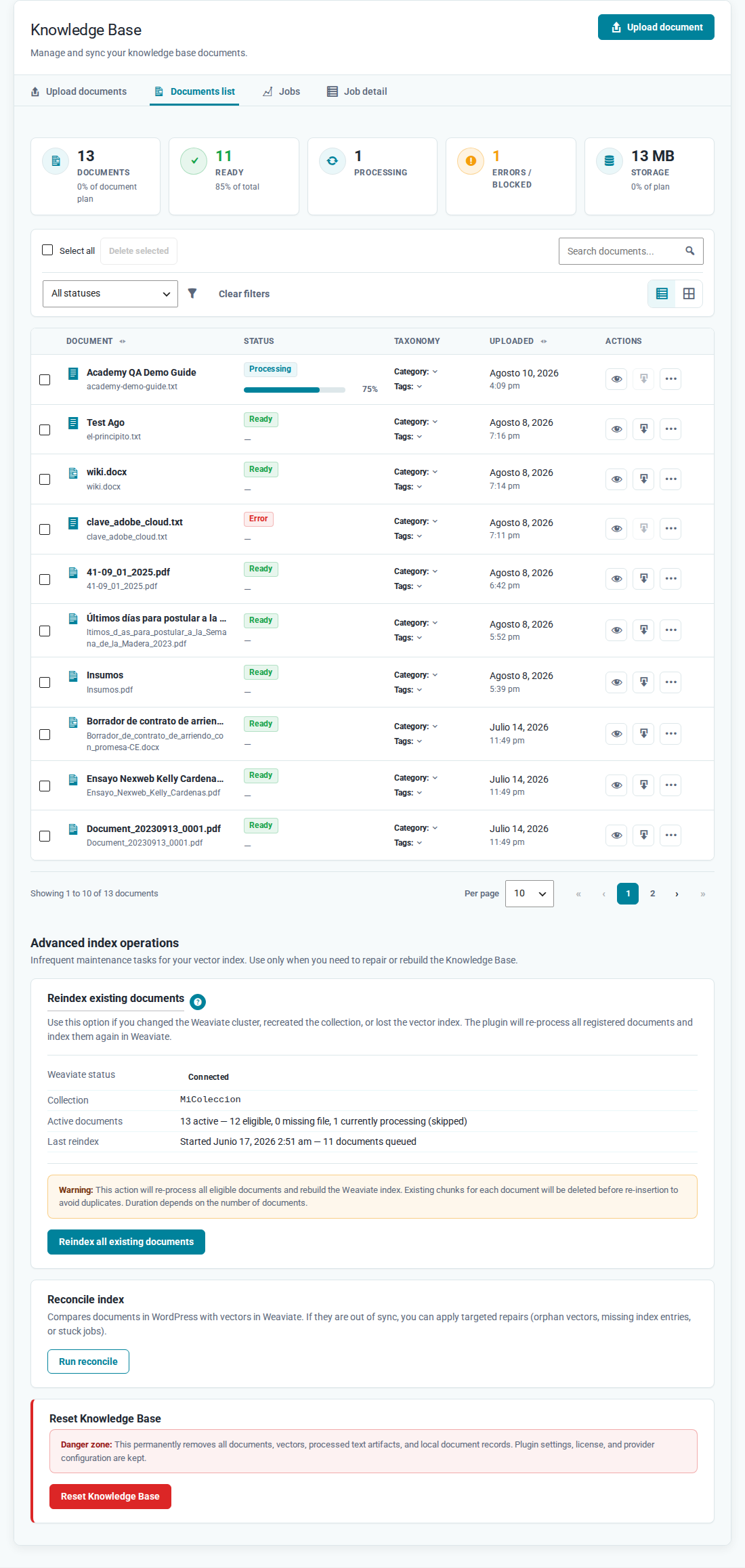
Open the Documents list tab. In the Status column, the document may show Processing while Noulek extracts, chunks, and indexes the content. The documents list updates automatically without reloading the page.
3. Open Job detail from the list
In the Actions column, click the eye icon (View job details) on the document row. You can also open the Jobs tab and use the Detail link on the matching row.
4. Confirm completion
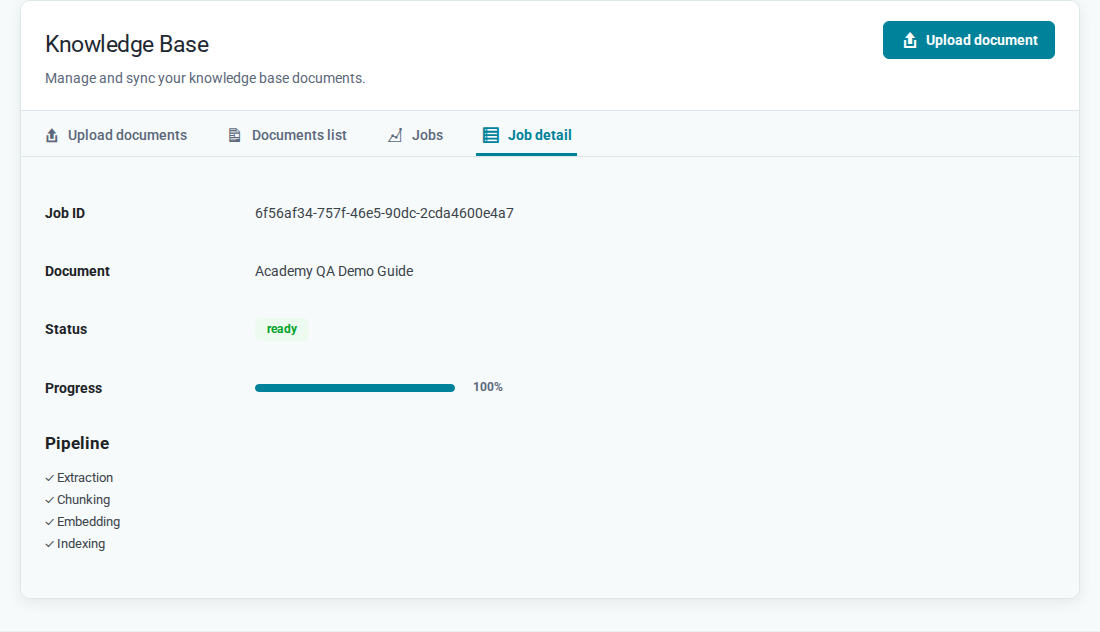
When processing finishes, Documents list shows Ready and Job detail shows 100% Progress with completed pipeline stages.
Expected result
The document shows Ready in Documents list and the job detail shows a completed pipeline without visible errors. The content is available for Search and Chat.
If you see Error, Blocked, or Requires reindex, review the error block in Job detail or contact your site administrator.