Fix LLM connection problems in Noulek
Problem
Search or Chat fails, or Settings → LLM shows Not connected. Test connection reports a failure or you cannot save settings.
What it means
Noulek cannot call the configured OpenAI model. Chat and RAG answers need a valid OpenAI API Key and Model in Settings → LLM. Embeddings for retrieval use the same API key.
Checks to perform
- Open Noulek AI → Settings → LLM.
- Confirm the status pill shows Connected (not Not connected).
- Verify OpenAI API Key is saved (the field may show a placeholder like (key saved — leave blank to keep)).
- Confirm a Model is selected (Luna, Terra, or Sol tier).
- Click Test connection and read the inline result.
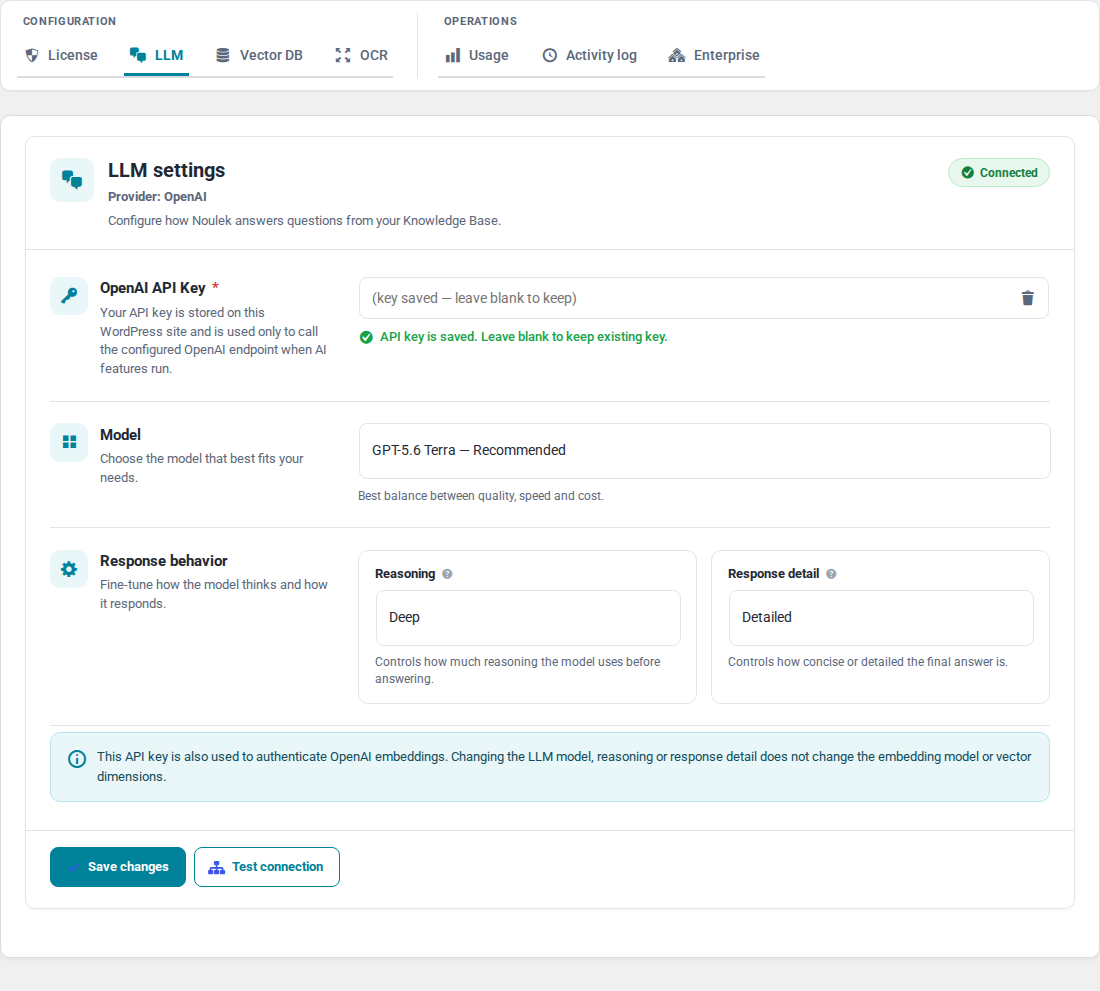
Common messages from Test connection:
| Message | Likely cause |
|---|---|
| Connection failed: OpenAI API key is required. Save your key before testing. | No API key stored |
| Connection failed: LLM model is required. Select and save a model before testing. | Model not saved |
| Connection test failed (with provider detail) | Invalid key, network issue, or provider error |
- If Chat shows a configuration error, open Settings → Activity log and look for
llm_connection_test_failedorNX_LLM_CALL_FAILEDentries.
How to resolve
- Paste a valid OpenAI API Key and click Save changes.
- Select a Model and save again if you changed it.
- Run Test connection until it succeeds.
- Retry Search or Chat on Search & Chat or your front-end widget.
If you cleared the key accidentally, use Remove API key only when you intend to delete it, then save a new key.
Expected result
Settings → LLM shows Connected. Test connection succeeds. Search and Chat can generate answers when Vector DB and indexed documents are also ready.
Related configuration
LLM alone is not enough for RAG answers. Also verify Settings → Vector DB and documents in Ready status. See Vector Database connection problems and Search or Chat returns no useful results.